wfd / Jul 21, 2026 / 5 min
flow editor
i write WFDs in markdown. the workflow has been: edit the .md file in my editor, save it, wait for next.js to recompile, switch to the browser, scroll to wherever i was, check if it looks right, switch back, fix whatever's off, save, wait, switch, scroll, repeat.
the friction adds up when you're iterating on formatting, especially with the custom syntax this site uses. admonitions, media directives, mermaid diagrams, component embeds. you can't preview any of that without running the full build pipeline.
i looked at alternatives. HedgeDoc is great for collaborative editing but doesn't understand my custom syntax. StackEdit and Dillinger are standard markdown editors that render GFM and nothing else. none of them know what @video[caption](url) or @component[PixelLoader] means, because those are extensions i built into the rendering engine.
so i built my own.
Retired the public flow editor experiment has been retired. this post and its images remain as a record of how it worked.
what it is
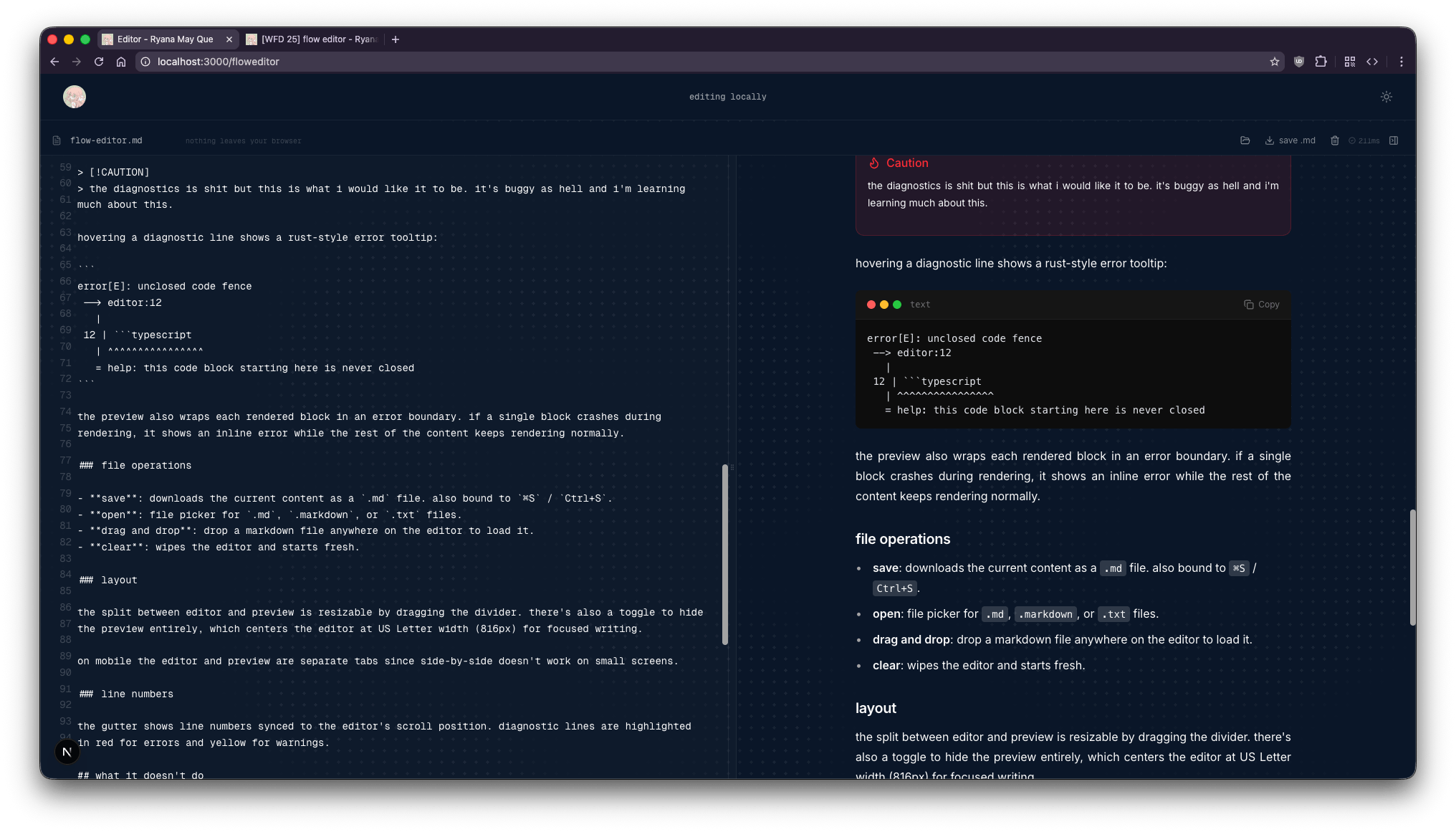
a side-by-side markdown editor that runs entirely in the browser. editor on the left, live preview on the right. the preview uses the exact same rendering pipeline that produces the WFD posts you're reading right now: remark, rehype, shiki, and all the custom block parsing on top.
nothing leaves your browser. the markdown is parsed client-side, stored in localStorage, and never sent to a server. when you're done, you download the .md file to your machine.
features
live preview
the editor debounces input and re-renders the preview after you stop typing. the toolbar shows render time in milliseconds, whether parsing succeeded, and the current diagnostic count.
the preview doesn't render frontmatter headers yet. i'll update this once i get around to it.
slash commands
typing / at the beginning of a line opens a command palette with all available syntax. /note inserts an admonition template. /mermaid inserts a diagram scaffold. /component inserts a component directive. the list filters as you type and you can navigate with arrow keys.
this was the main motivator for building the editor. i kept forgetting the exact syntax for things like admonition titles (> [!NOTE/Custom Title]) or component props (@component[Name]({"key":"val"})). now i just type / and pick from the list.

diagnostics
the editor runs a linter that catches structural issues in real time. unclosed code fences, malformed media directives, invalid component JSON, unknown admonition types, headings that are too deep. errors and warnings show up as colored line numbers in the gutter.
hovering a diagnostic line shows a rust-style error tooltip with the offending line, caret markers, and a help hint when available:
error[E]: unclosed code fence
 --> editor:12
   |
 12 | ```typescript
   | ^^^^^^^^^^^^^^^^
   = help: this code block starting here is never closed
errors with severity error also surface as styled containers at the top of the preview pane, so you don't have to hover individual lines to spot problems. blocks that fail to render are silently dropped rather than showing inline error boxes because the top-level error banner already tells you what's wrong.
image and diagram lightboxes
clicking an image embed in the preview opens it in a fullscreen lightbox with prev/next navigation (matching the behavior on the live site). clicking a mermaid diagram opens a draggable canvas where you can pan by dragging and zoom with the scroll wheel or the +/- keys. the canvas shows zoom controls in the top-left and an × button to close. pressing 0 resets the view.
file operations
- save: downloads the current content as a
.mdfile. also bound to⌘S/Ctrl+S. - open: file picker for
.md,.markdown, or.txtfiles. - drag and drop: drop a markdown file anywhere on the editor to load it.
- clear: wipes the editor and starts fresh.
layout
the split between editor and preview is resizable by dragging the divider. there's also a toggle to hide the preview entirely, which centers the editor at US Letter width (816px) for focused writing.
on mobile the editor and preview are separate tabs since side-by-side doesn't work on small screens.
line numbers
the gutter shows line numbers synced to the editor's scroll position. diagnostic lines are highlighted in red for errors and yellow for warnings.
what it doesn't do
- collaboration of any kind, real-time or otherwise. this is a single-user local tool.
- direct file system access. saving means downloading a file, and loading means dragging one in or using the file picker.
- syntax highlighting in the editor pane. i considered monaco or codemirror but decided against adding heavyweight dependencies for something that primarily exists as a preview tool. it's a textarea with monospace font.
- cloud sync or accounts. localStorage is the only persistence layer, so clearing your browser data means starting over.
why not just use vscode preview
vscode has a built-in markdown preview, and there are extensions for GFM and custom renderers. none of them would use my exact rendering pipeline without significant effort to replicate it. the custom block parser, the admonition component, the media carousel logic, the shiki highlighting config: all of that lives in the site's codebase. the flow editor imports the same function the site uses, so the output is identical.
should this be open source?
the rendering engine, the editor, and the WFD system are all built for this site specifically, but the patterns are generic enough that someone could adapt them. if this blog gets any traction or if there's interest, maybe i'll open source the whole thing. the markdown engine alone might be useful to someone building a similar system.
if you have thoughts on that, let me know.